
This section covers how an Administrator purchases Mobile Bluetooth Credentials for a customer in Dealer Admin. These steps should be completed after the SR3 Bluetooth Reader is installed and associated with a customer’s system in Tech APP.
To purchase and issue credentials in Dealer Admin, you need an Administrator role or a custom role with Mobile Bluetooth Credential permissions. For more information, refer to Personnel Roles.
Prefer a Video?
In this clip, we’ll show you how to purchase Mobile Bluetooth Credentials.
Enable Mobile Bluetooth Credentials
To purchase Mobile Bluetooth Credentials, complete the following steps:
-
In the menu, go to Tools > Mobile Bluetooth Credentials.
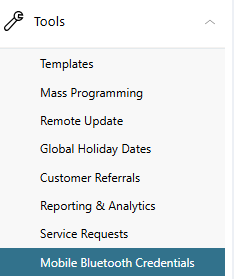
-
Go to the Purchase Bluetooth Credentials section.
-
In Customer, select a customer you want to enable the credentials for.
-
In Quantity, select the number of credentials you want to assign. You can select up to 1,000 credentials.
-
If needed, use the Notes/PO field to help you track items like why the credentials were issued and who requested them.
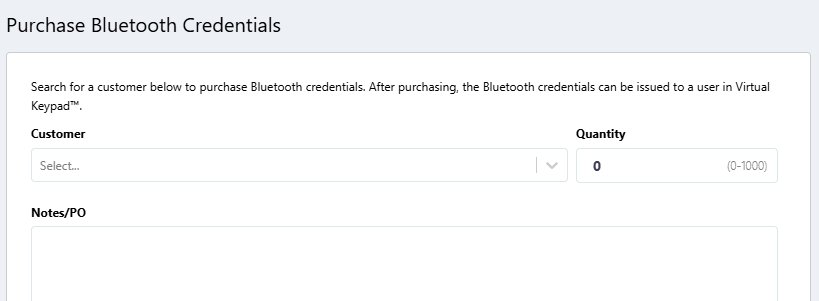
-
To purchase the credentials for your customer, select Purchase Bluetooth Credentials.

-
Notify your customer that you completed their purchase.
Public Card Formats
|
CARD FORMAT |
WEIGAND CODE LENGTH |
SITE CODE POSITION |
SITE CODE LENGTH |
USER CODE POSITION |
USER CODE LENGTH |
USER CODE DIGITS |
|
DMP Bluetooth 56-Bit |
56 |
1 |
16 |
17 |
34 |
10 |